Invite Members
Overview#
The Invite Members feature lets organization admins onboard new teammates by emailing invitations that include a predefined role. Each role determines what the invited user can access and manage inside the organization.
When to Use It#
- Expanding the team and onboarding new collaborators
- Assigning specific scopes of access such as Owner, Admin, or Member
- Coordinating cross-department work while keeping permissions secure
Key Benefits#
- Quick onboarding — send invitations in seconds without manual account setup
- Role-based permissions — map responsibilities to Owner, Admin, or Member access levels
- Streamlined collaboration — bring the right people into shared projects with minimal friction
- Secure access management — restrict entry to approved users only
UI/UX Specification#
Accessing the Invite Members Window#
- Open the Organization dashboard.
- Select
Membersfrom the top-right action area to launch the invitation dialog.
Component Reference#
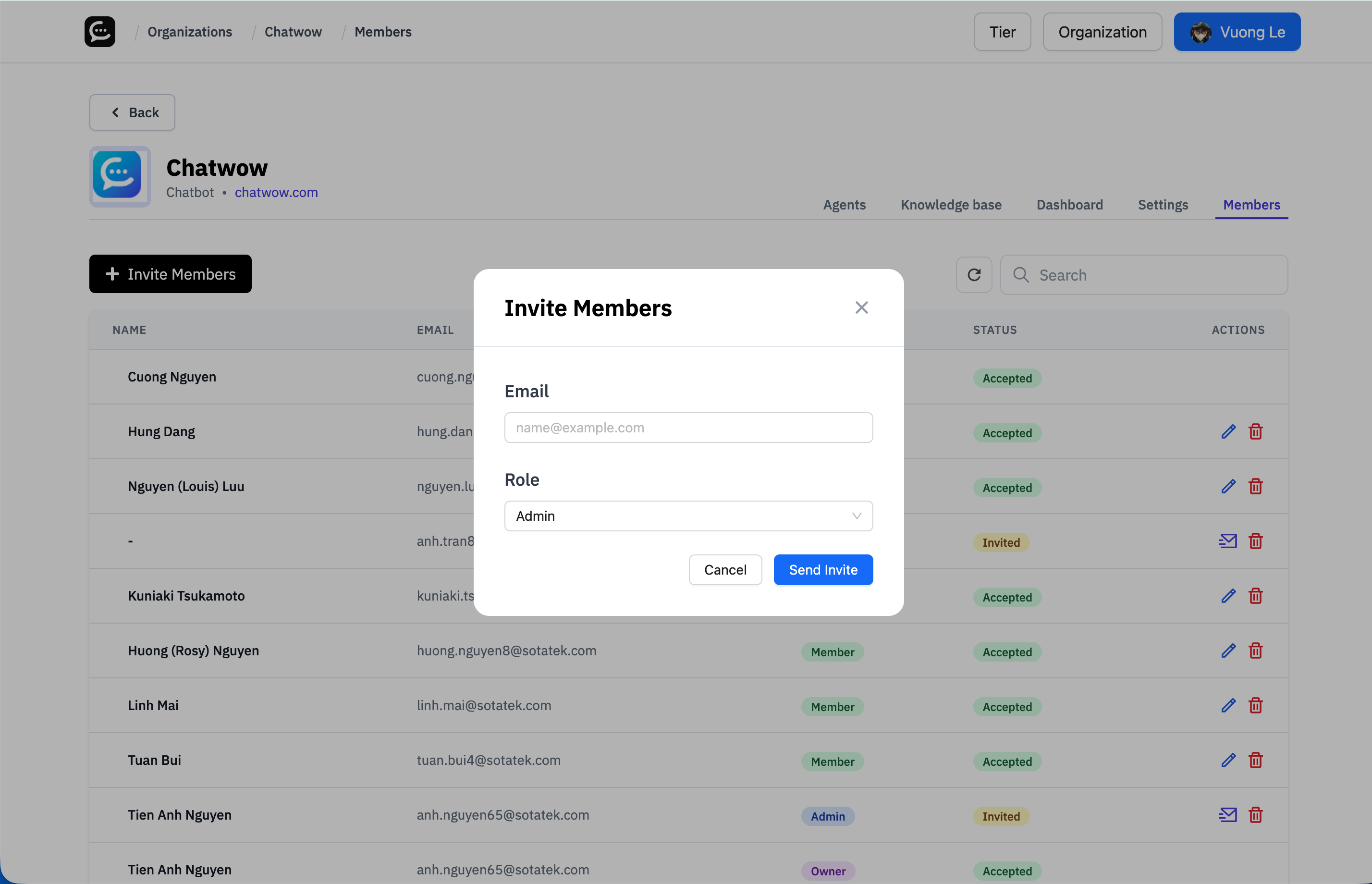
| Component | Type | Description |
|---|---|---|
| Email Field | Text input | Enter the invitee email address (must be a valid format such as [email protected]). |
| Role Dropdown | Dropdown | Choose the access level: Owner, Admin, or Member. |
| Role Options | Option list | Owner — full control, including billing and member management. Admin — manage agents, content, and member invites (no ownership transfer). Member — use assigned agents without changing settings. |
| Cancel Button | Button | Close the dialog without sending the invitation. |
| Send Invite Button | Button | Dispatch the email invitation to the provided address. |
Close Icon (X) | Icon button | Dismiss the Invite Members dialog without saving. |
How to Use#
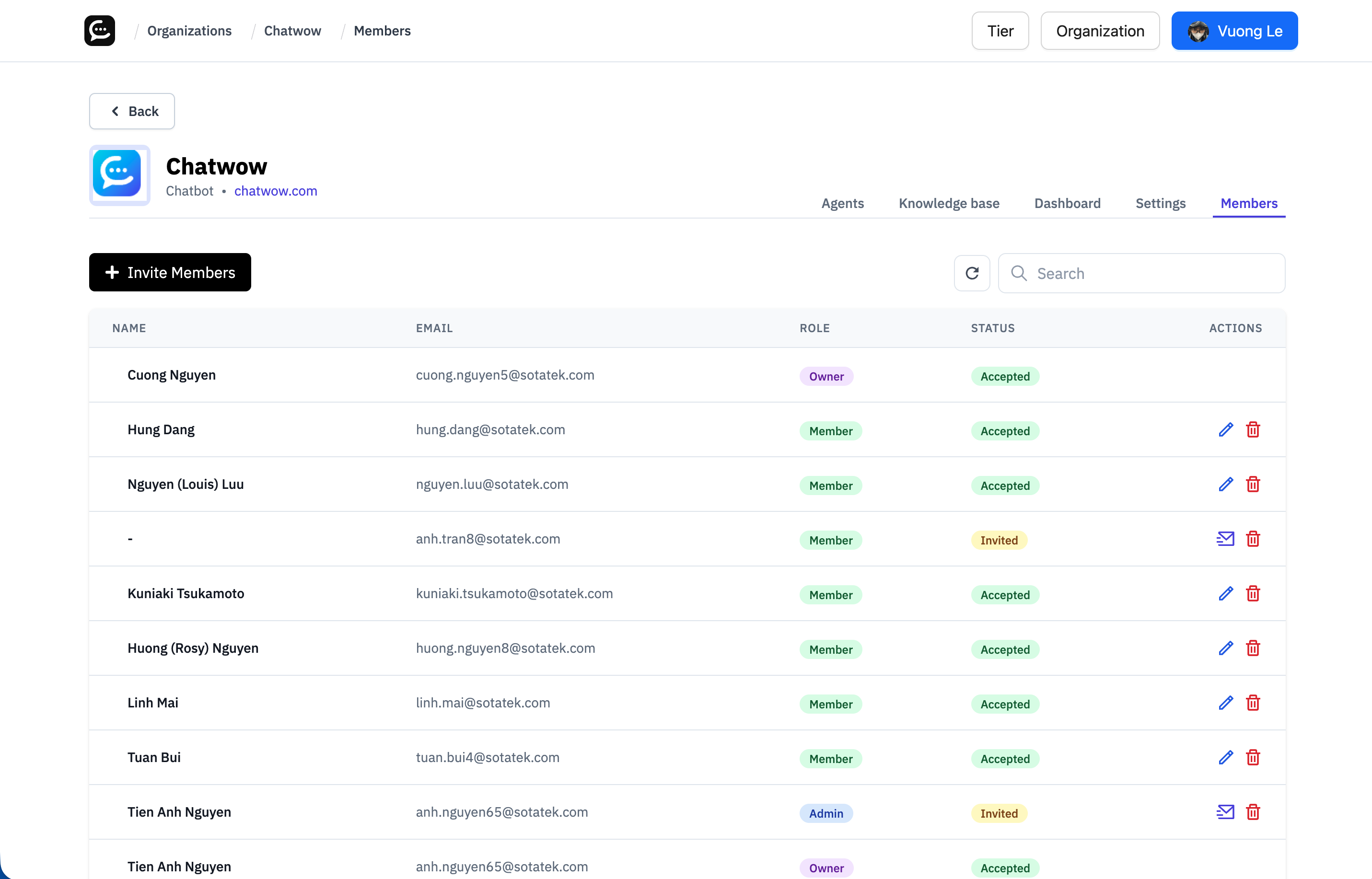
- Navigate to the
Memberssection of your organization. - Click the
Invite Memberbutton to open the invitation popup. - Enter the new member email address in the
Emailfield. - Select the appropriate role from the dropdown:
- Owner — manages all billing, settings, members, and can transfer ownership.
- Admin — creates and manages agents, edits content, and invites members (excluding Owner transfers).
- Member — interacts with assigned agents and content without altering organization settings.
- Choose
Send Inviteto dispatch the email, orCancelto close the dialog without changes. - The recipient receives an email invitation to join the organization.
Notes & Tips#
- Only Owners can transfer ownership between members.
- If an invitation expires, resend it from the members list.
- Double-check the chosen role before sending to avoid unnecessary privilege escalation.
- Default to the
Memberrole for most collaborators; reserve Admin or Owner for trusted staff.
FAQ#
Can there be more than one Owner?#
Yes. Multiple Owners are supported, but limit the count to maintain security.
Can I change someone's role after they join?#
Yes. Update roles anytime from the Members screen in your organization dashboard.
What if the invite email is not received?#
Ask the recipient to check spam or junk folders, then resend the invitation if needed.
Can Members invite other users?#
No. Only Admins and Owners can extend invitations to new members.
Last updated on